

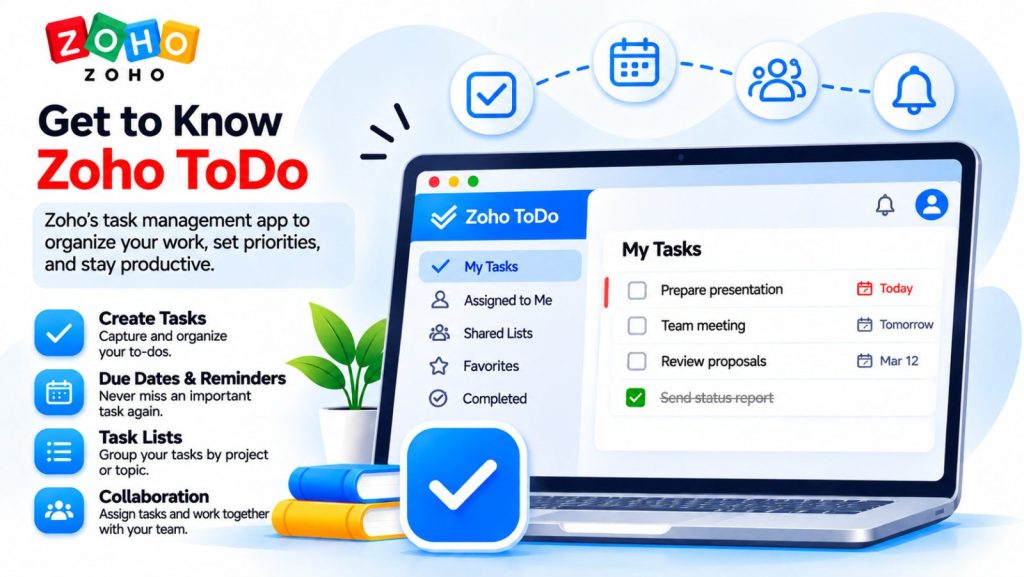
Zoho ToDo is a task manager built into Zoho Mail and included at no extra cost. It lets you turn emails into tasks, assign them to colleagues, set deadlines, and track progress. You can manage your tasks from Zoho Mail on the web or through the dedicated Zoho ToDo app for Android and iPhone. This guide shows how to use it for everyday team workflows, from approving a revised quote to reviewing outstanding orders.
A customer request, an invoice approval, or a delivery deadline can arrive in a single email. Once that message calls for action, the team needs to know who is responsible, when the work is due, and what still needs to happen. Zoho ToDo is a task manager for personal and team work. It keeps the owner, due date, status, and updates together so everyone involved can see what comes next.
Built into Zoho Mail at no extra cost
Zoho ToDo is built into Zoho Mail (webmail) and included in the Zoho Mail plan at no extra cost. If your business already uses Zoho Mail, employees can open ToDo or Tasks from webmail using their existing company accounts, with no separate purchase or subscription required.
Zoho ToDo also has a dedicated mobile app for Android and iPhone, available through Google Play and the App Store. Employees can sign in with the same Zoho account to check their assignments, review due dates, and update task status from their phones. A colleague working in the warehouse or visiting a customer can mark a task as complete as soon as the work is done.
Turning an email into an assigned task
In Zoho Mail, right-click a message and select Add to → Tasks. The email subject and body populate the initial task title and description. From there, you can edit the title to make the next action clear, assign an owner, set a due date and priority, and add a reminder. The task stays linked to the original email so you can refer back to the request. If you add the task to a group, you can also choose to share the related email conversation with that group.
For work that involves several people, you can split the task into subtasks and assign each step to the appropriate colleague. If a document is missing or an approval is pending, the task owner can leave a comment explaining what is needed and who can provide it. The team can then focus its next meeting on the items that need a decision or help moving forward.
Planning the day and the week
Assigned to Me shows employees the work they own, while My Day lets them choose what to focus on today. The list view helps with reviewing deadlines. In the Kanban board view, labeled Board in Zoho ToDo, tasks appear as cards and can be grouped by status. A team can add a custom status such as Awaiting Approval to make it easier to see which tasks are waiting for a decision.
For regular responsibilities such as checking stock or collecting month-end documents, the team can create a recurring task and set its schedule. During a weekly review, the team can check what is due soon, see where deadlines overlap, and adjust priorities or assignments in the relevant tasks.
Two examples of Zoho ToDo in practice
1. Revising a customer quote
A customer emails to request a change to a quote. The sales representative turns the message into a task called Send revised quote and sets a due date. If the new price needs approval, they create a subtask and assign it to the person responsible. The approval is recorded in the task comments, and the representative marks the task complete after sending the revised quote. Anyone with access can see whether the quote is still awaiting approval or has already been sent.
2. Reviewing outstanding orders every Friday
The warehouse team creates a recurring group task called Review outstanding orders. Each Friday, the assigned colleague checks which orders are delayed and records the revised estimated delivery dates in the task comments. Sales colleagues with access to the task can use the same update when speaking with customers, saving a separate round of emails to confirm delivery dates.
How Zoho ToDo reduces internal email
When a deadline changes, a decision is needed, or a step is completed, the owner can update the task directly. Colleagues with access can see who is responsible, what is due, and what is holding up progress. Keeping those updates with the task reduces the need for follow-up emails asking, “Who’s handling this?” or “Has it been done yet?”
Need help setting up Zoho Mail?
The Netwist team is here to help. Get in touch if you have a question, or submit a support ticket for technical assistance.