

Reducing internal email is important because the more messages we receive, the more time we spend sorting through them to find important updates and see what was decided. Zoho Streams is already built into the Zoho Mail (webmail) we use and is available at no extra cost, so there’s no need for a separate purchase or subscription. Each team or project can use a shared space for day-to-day updates and discussions, keeping comments and decisions together in the same thread. This cuts down on forwarded emails and reply-all messages and makes it easier for everyone to see what’s been decided and what’s still pending.
Imagine a customer emails you about an order and you need help from the warehouse. With Streams, you can share the email with your coworkers, discuss what happened, and decide who will follow up with the customer. You can do all of this inside Zoho Mail.
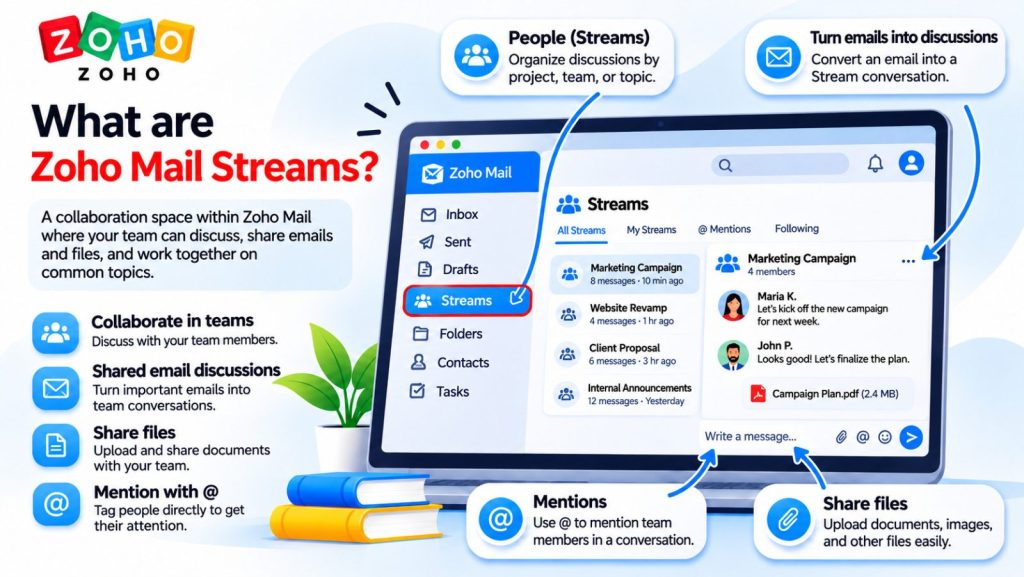
What is Streams?
Streams is a place to work with your coworkers in Zoho Mail. You can post an update, attach a file, share an email, or assign a task. Your coworkers can comment right below the post, so everyone involved can follow the conversation in one place.
On the Streams home page, Streams to Me shows conversations you’ve taken part in or where someone mentioned you. Streams by Me shows your own posts and the emails you’ve shared. Zoho Mail help for Streams Home
What are Groups?
Groups are the teams you work with. Each group with Streams enabled has its own page for posts and comments. For example, an Orders group can discuss deliveries, while a Support group can handle customer requests.
To post an update, open Streams, choose a group, and click Post a message. You can also add a note or create a task from there. Zoho Mail help for posting in a group
How to share an email with a group
- Open the email and find the comment box at the bottom of the conversation.
- Type @ followed by the group name, such as @Orders. Select the group and write what you need help with.
- Post your comment. The group can now see the full email conversation. If you want to share just one message, first click Share at the top of that message.
Use comments to talk to your coworkers. To answer the customer, click Reply in the original email. Zoho Mail help for sharing emails
How to create a group
Above the group list, click Manage Groups, then Add new group. Enter a name and a short description, add the people you want in the group, and click Create Group.
Zoho calls this a Personal Group. If the group needs its own email address, such as [email protected], a Zoho Mail administrator or someone they’ve given permission to can create it. Zoho Mail help for creating groups
Example 1 – Two items are missing from an order
A customer emails you to say they received 8 of the 10 items they ordered.
- Share the email and write, “@Orders Can someone check order #1042? The customer says two items are missing.”
- John from the warehouse replies in the comments, “I found the two items. We can ship them tomorrow.”
- Right-click the email and select Add to → Tasks. Add the task to the Orders group, assign it to Maria, and set it as due tomorrow. Once the items ship, Maria emails the customer the tracking number. Zoho Mail help for creating a task from an email
Example 2 – A customer wants to change their delivery address
Share the email with @Support and ask whether the package has shipped. A coworker replies in the comments that it’s still at the warehouse. You assign them a task to update the delivery address on the order. Once they confirm the change, reply to the customer from the original email.
Need help setting up Zoho Mail?
The Netwist team is here to help. Get in touch if you have a question, or submit a support ticket for technical assistance.