

Every new email can call for a different action. An invoice needs to be filed, a customer request needs an owner, and a quote may need a follow-up. Zoho Mail automation handles many of these routine steps through filters, reminders, scheduled sending, and integrations with tools such as Zoho ToDo and WorkDrive.
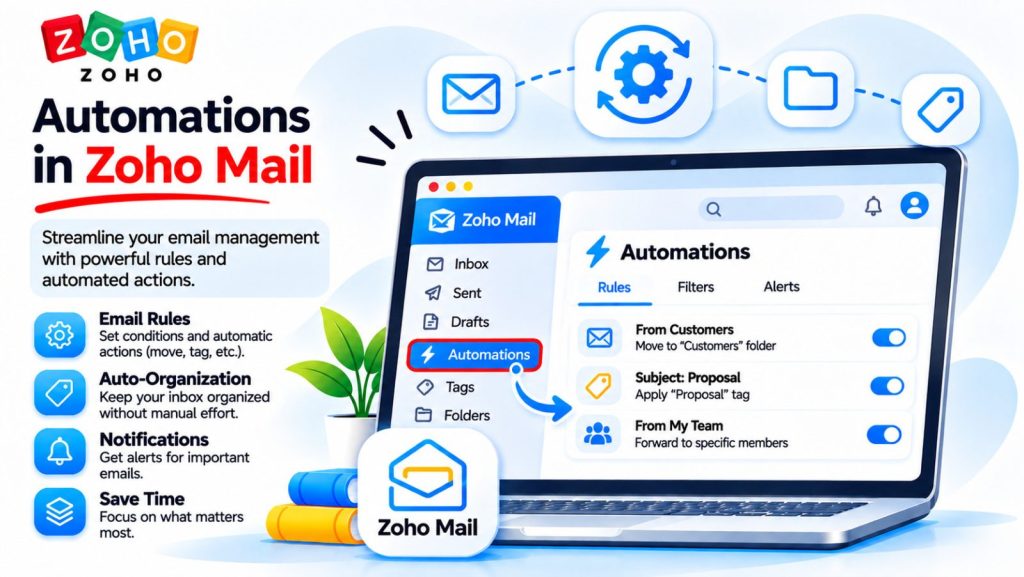
Filters for incoming and outgoing email
Each filter combines conditions and actions. Conditions identify the messages Zoho Mail should process using details such as the sender, recipient, or subject line. Actions determine what happens when a message matches. Depending on the filter type, Zoho Mail can move it to a folder, apply a tag, or forward it to a specified address. Filters can apply to both incoming and outgoing messages.
| Use case | Condition | Automatic action |
|---|---|---|
| Supplier invoices | The email comes from a specified supplier and the subject contains “Invoice” | Move it to the “Supplier Invoices” folder |
| Booking enquiries | The message is addressed to the reservations address | Apply the “Reservations” tag |
| Sent quotes | The outgoing subject contains “Quote” | Apply the “Quotes” tag |
To create a rule, go to Settings → Filters, select incoming or outgoing filters, and choose New Filter. Decide whether all conditions must match or whether any one is enough, then select the action and save the rule. When a message matches multiple filters, Zoho Mail processes them in the order they appear. Stop Processing Other Filters skips the remaining rules when that filter matches.
Turning emails into tasks and filing attachments
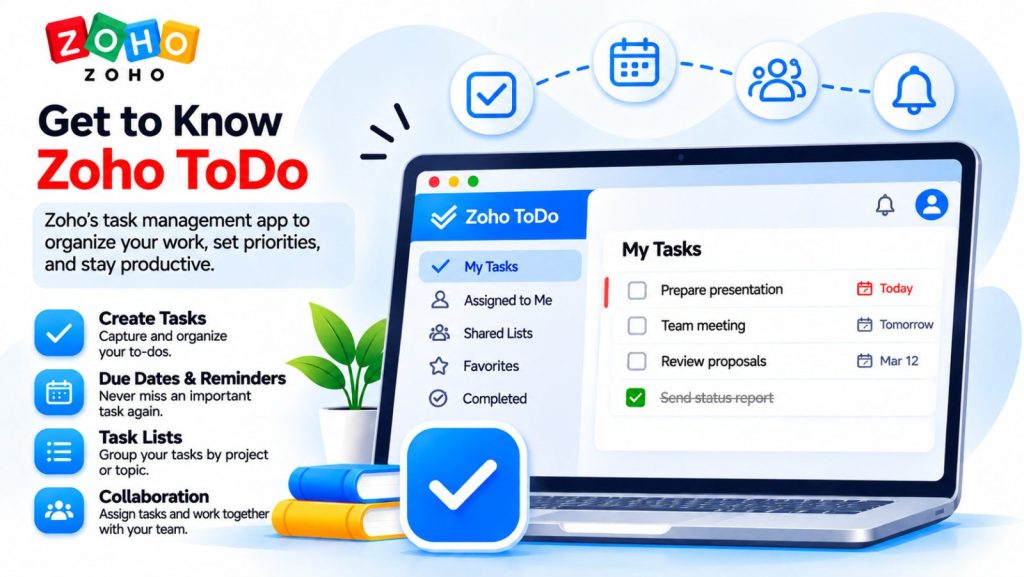
An incoming filter can automatically create a task in Zoho ToDo. For example, a contact form might send each new enquiry with the subject “New quote request.” A filter can check the form’s sender address and subject, then create a task for the team to assign and give a due date. Using both criteria helps the rule pick up the original form notification and avoid creating duplicate tasks from later replies.
With the Zoho WorkDrive integration, a filter can also save attachments automatically to a selected folder if the account has the required access. Weekly stock reports, for example, can go straight to a shared WorkDrive folder, saving the team from downloading and uploading each file by hand.
Follow-up reminders, scheduled sending, and automatic replies
If no replies until alerts you when nobody has replied by the deadline you set. If you ask a supplier for a quote, for example, you can set a reminder for Friday. Zoho Mail can also remind you at a set time or notify you about each reply. Depending on the reminder you choose, Remind recipients also lets you include recipients in the follow-up.
With Send Later, you can draft an email and choose when it goes out. Recurring lets you schedule repeated messages, such as a Monday reminder to submit a weekly report, with an end date or a fixed number of sends. Under Settings → Out of Office, you can set your dates away, write separate replies for colleagues and external contacts, and control how often the same sender receives the automatic reply.
Coordinating team email in a shared mailbox
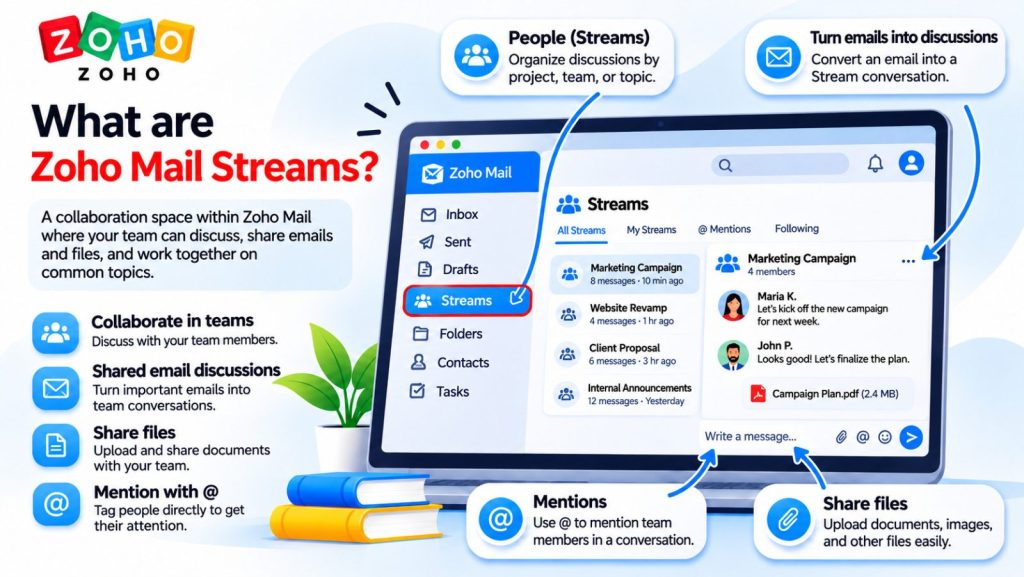
In a Shared Mailbox, team members can read the same conversation and assign a message to themselves or a colleague. Assignment is a separate step from automatic sorting. At a hotel front desk, for example, the morning shift might ask a guest for a flight number to arrange an airport transfer. If the guest replies after the shift change, the next receptionist can open the same conversation, see what has already been agreed, and take over the request.
Advanced workflows with Zoho Flow and Deluge
When an email needs to start a process in another application, Zoho Flow can receive messages at a dedicated workflow address and extract fields from consistently formatted emails. For example, it can pull the order number and delivery date from an order confirmation and pass those values to a connected spreadsheet. Zoho Mail also supports custom Deluge functions for filters that need specialized conditions or actions.
Before relying on a rule, test it with a message that matches, a similar message that does not, and a message that matches two filters. Check the outcome the team needs. For an invoice workflow, that means confirming both that the email landed in the correct mailbox folder and that the attachment reached the intended WorkDrive folder.
Getting Started with Zoho Mail Automation
The examples above give you a sense of how Zoho Mail can simplify everyday work. To get started, pick a task you do often, such as filing invoices or following up on a quote. You can set up a filter or reminder directly in Zoho Mail without any specialized technical knowledge. That frees up time you would otherwise spend sorting messages and tracking follow-ups, so you can focus on the work that needs your attention.
Need help setting up Zoho Mail?
The Netwist team is here to help. Get in touch if you have a question, or submit a support ticket for technical assistance.