

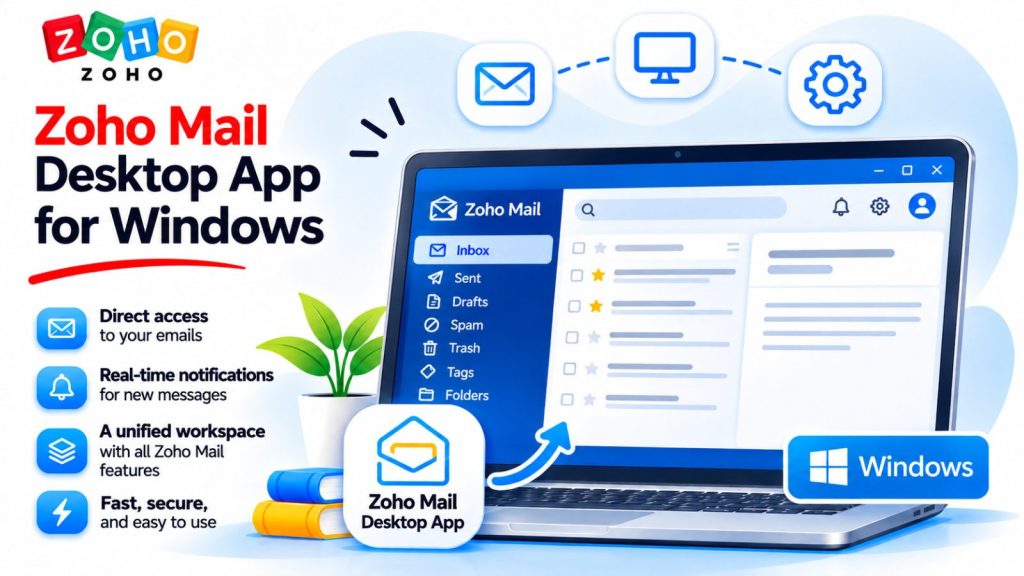
If you work from the same computer every day, the Zoho Mail Desktop App gives your business email a dedicated window alongside the other programs you use. You can open it from the Windows taskbar, receive desktop notifications, and handle your email without keeping a webmail tab open. The official app, called Zoho Mail Desktop Lite, is free to download, works with your existing Zoho Mail account, and supports Windows 10 and later, including Windows 11.
How to download and install the app
- Go to the official Zoho Mail Desktop download page and find Download for Windows.
- Choose the EXE installer that matches your system. Zoho offers 32-bit and 64-bit versions, as well as MSI installers for IT deployment.
- Open the downloaded file and follow the setup instructions. Select Finish when installation is complete.
- Open Zoho Mail from the Windows Start menu and sign in with your business Zoho Mail account. For everyday access, you can pin the app to the taskbar.
You can also find the download in your Zoho Mail webmail profile under Zoho Mail Desktop Apps.
Why the desktop app is practical on a dedicated workstation
On a dedicated workstation, the desktop app is often the most convenient way to handle business email. You can keep it open beside your booking, order management, or accounting software and return to it directly from the taskbar. Windows notifications alert you to new messages while you work in another program.
In the app, you can search previous conversations, reply to customers and suppliers, send files, and organize messages into folders. The Downloads view lists attachments you have downloaded. If you manage several Zoho Mail accounts, you can add them under Accounts → Add Account and switch between them from the same menu. The app supports up to ten accounts.
The Emails are stored in your Zoho Mail account in the cloud and count toward your account’s storage allowance. Zoho Mail Desktop Lite syncs with webmail, so your computer does not need to keep a complete local archive of your mailbox. Any attachments you choose to download as files take up space on your computer.
With Zoho Mail Desktop Lite, you can use Zoho Mail’s built-in tools alongside your inbox. For example, you can turn an email into a task in Zoho ToDo, take notes in Notes, or save an attachment to Zoho WorkDrive if you have access to it. Other Zoho Workplace apps, such as Writer, Sheet, and Show, are available depending on your organization’s plan. When you connect your Zoho Mail account to Outlook or Thunderbird via IMAP, the connection syncs only your email messages and folders. Zoho Mail’s built-in tools and integrations remain available through the Zoho interface.
Using the desktop app and webmail side by side
The desktop app syncs with Zoho Mail on the web. If you send a quote from the desktop app at the office, you can later find it in the same account’s Sent folder through webmail. The app’s Open in browser option also opens your current view in the web version.
Team members can use the desktop app and webmail in parallel. When several employees need to handle messages sent to the same team address, the Zoho Mail administrator can set up a Shared Mailbox and grant access through each employee’s own company account. That gives authorized colleagues access to the same conversations, so they can check what has already been answered before following up.
How a hotel front desk can use Zoho Mail Desktop
The Zoho Mail Desktop App is especially practical for hotel front desks, where staff check email throughout the shift while working in the reservation system. The app can stay open on the front-desk computer, while authorized colleagues can use webmail from another company workstation when needed.
Handling a change in a guest’s arrival time
A guest emails to say they will arrive after midnight. The receptionist sees the Windows notification while working in the reservation system, opens the message in the desktop app, and finds the original booking confirmation. They reply with late check-in instructions and update the arrival time in the reservation system. The email stays accessible in its own window, without a separate tab in Chrome or Firefox.
Handing over a guest request between shifts
A hotel can set up a shared address such as [email protected] and give front-desk staff access through their own company accounts. The morning shift replies to an airport transfer request and asks for the guest’s flight number. When the guest responds, an authorized colleague on the afternoon shift can open the shared mailbox in webmail, read the conversation, and continue arranging the transfer.
Need help setting up Zoho Mail?
The Netwist team is here to help. Get in touch if you have a question, or submit a support ticket for technical assistance.