

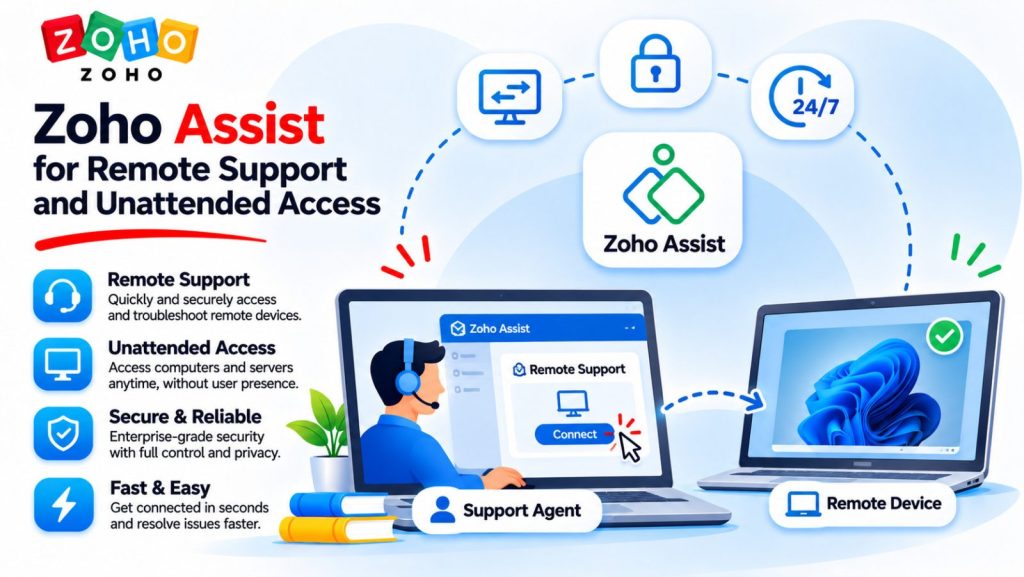
It’s Friday evening and you need to open an application that only runs on the office computer. If that computer has already been set up with the Zoho Assist Unattended Agent, you can sign in to Zoho Assist, choose the device and connect from where you are. The same product also handles one-off support sessions, such as helping a colleague troubleshoot an application while they’re at their desk.
How the Zoho Assist Unattended Agent works
For a one-off support session, the person you’re helping joins the session. With unattended access, you install the agent in advance on each computer you need to reach regularly. You can then start a session when the device is online, even if nobody is signed in. That makes it useful for reaching your office PC, checking a workstation after hours or maintaining a computer at another location.
- In Zoho Assist → Unattended Access, download the installer for the remote computer’s operating system.
- Run the installer on the computer you want to reach and verify that the device appears in your Unattended Access list.
- From your own computer, open Zoho Assist and select Connect next to the device. On a supported Windows or Linux device with multiple active users, you may see Connect As.
- Test the connection before you leave the office. For routine access, keep the remote computer powered on, awake and connected to the internet.
Unattended access gives you a way to reconnect when you need it. If Session Confirmation is enabled, someone at the remote computer still needs to approve each connection. If your goal is to leave a session open while you step away, check the Idle Session Timeout setting as well. When enabled, it can end the session after the configured period of inactivity.
How Zoho Assist compares with TeamViewer and AnyDesk
All three products support unattended access. For a small business, the choice often comes down to how many devices you manage, how many people need to connect at once and where your support team already works.
| Product | Unattended access and licensing | Where it fits |
|---|---|---|
| Zoho Assist | The free edition is marketed for personal and small-business use. It covers up to five unattended computers, one remote support technician and one concurrent session. | A small office with a few computers or a support team that already works in Zoho Desk. |
| TeamViewer Remote | Supports unattended access and offers web and desktop clients. Its free edition is for personal, non-commercial use. | A business that already uses TeamViewer and can cover its managed devices and users under a commercial plan. |
| AnyDesk | Supports unattended access. Its free edition is for personal use, and professional users need a paid licence. | A single professional user comparing the Solo plan or a team comparing AnyDesk’s business tiers. |
Where Zoho Assist has the edge
A practical starting point for a small office. If one person needs to reach an office PC and a few other computers, Zoho Assist’s free edition gives that setup room to operate within its five-device and one-concurrent-session limits. For the same business use, TeamViewer and AnyDesk direct users to commercial plans. Once multiple people need simultaneous access, compare the paid plans using your expected number of devices and connections.
Remote support from a Zoho Desk ticket. With the integration configured, a technician can start a support session from the ticket and update its status, resolution and session notes from the Zoho Assist technician console. For a team that already works in Zoho Desk, that keeps the session and its follow-up tied to the same customer request.
Browser access for the technician. You can connect using a supported browser on your side, with the unattended agent installed on the computer you’re accessing. That’s useful when you’re working from a different machine. TeamViewer also offers a web client, so browser access is one part of the comparison alongside licensing and ticket integration.
If your immediate need is to reach one office computer, test the exact situation you care about. Connect from outside the office, verify that you can reach the application you need and try reconnecting after a restart. If you’re choosing for a team, check how many connections you need at the same time and whether technicians need to start sessions from support tickets. Those requirements will help you choose a plan that fits how your team works.
Need help setting up Zoho Assist?
The Netwist team is here to help. Get in touch if you have a question, or submit a support ticket for technical assistance.