

Use Apple Mail to access your Zoho inbox alongside your other email accounts. If your Zoho plan doesn’t include IMAP access, use the Zoho Mail app.
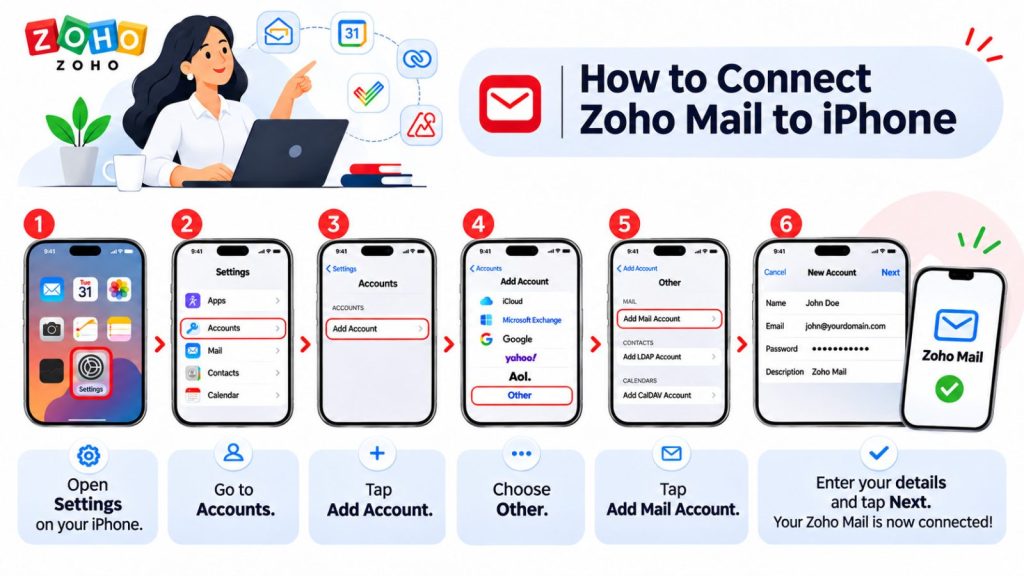
Option 1 – Add Zoho Mail to Apple Mail
- On your iPhone, open Settings → Apps → Mail → Mail Accounts → Add Account.
- Enter your Zoho email address and tap Next. Choose Add Other Account → Mail Account. On some iOS versions, this appears as Other → Add Mail Account.
- Enter your name, full email address, and password. In the Description field, enter a label such as
Zoho Work Mail. - Tap Next. If Mail asks for server settings, select IMAP and fill in both sections.
| Setting | Incoming Mail Server (IMAP) | Outgoing Mail Server (SMTP) |
|---|---|---|
| Host Name | imappro.zoho.eu | smtppro.zoho.eu |
| User Name | Your full Zoho email address | Your full Zoho email address |
| Password | Your Zoho password or app password | The same password |
| Use SSL | On | On |
| Server Port | 993 | 465 |
For example, a paid custom-domain mailbox in Zoho’s EU data center may use imappro.zoho.eu and smtppro.zoho.eu. Use the exact host names shown in your Zoho account. Enter the outgoing username and password even if the iPhone marks those fields Optional. If you don’t see port fields during setup, you can check them after saving. Zoho Mail server settings
- Tap Next and wait for verification. Make sure Mail is enabled, then tap Save.
- Open Mail, send a test message to another address you can access, and reply to it to check that sending and receiving both work.
Troubleshooting
- Mail can’t verify your account. Check that IMAP is enabled in Zoho, the host names match your account settings, and you’ve entered your full email address. If you use two-factor authentication, check that you entered your Zoho app password in both server sections.
- You can receive mail but can’t send it. Open your Zoho account in the iPhone’s Mail Accounts settings and go to SMTP → Primary Server. Check the username and password, turn on Use SSL, and confirm the port is
465. - New messages arrive late. Go to Settings → Apps → Mail → Mail Accounts → Fetch New Data. If Push is unavailable, choose how often your iPhone checks for new messages.
Option 2 – Use the Zoho Mail app
- Download Zoho Mail – Email and Calendar from the App Store.
- Open the app and sign in with your Zoho account. Complete two-factor verification if prompted.
- Allow notifications if you want alerts for new messages.
The Zoho Mail app handles the connection when you sign in, so you can skip manual server setup.